How Do I Save Files in the Cloud?
So your computer is being updated and you are losing your P: Drive and Shared Drives and you don't know what to do? We are here to help.
If at any time you need assistance with this please contact an IT staff memeber for assitance.
This page will assist people in learning how to move your files to the cloud. This is important as it replaces your P: Drive and any shared drives you may have used before.
1. Open File Explorer usually in your task bar.

2. Find either "Google Drive (G:)" or "One Drive - State of South Dakota..."
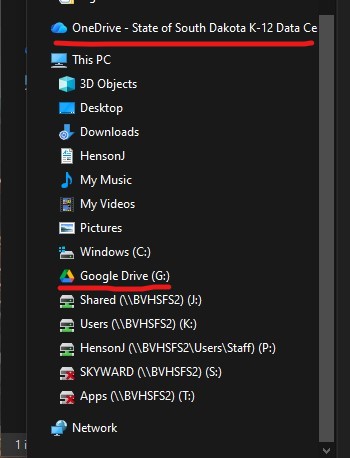
If these are missing contact IT so that we can get them connected for you.
We are going to use Google Drive in this example. If you want to use OneDrive the process is similiar.
3. Click on "Google Drive (G:)"

4. Open My Drive.
5. Here you can create folder and add files. You can also just copy everything from your P: Drive into this folder.
Make sure you are in "My Drive" When you do this
It is advisable that you clean up anything you don't need during this process, once you have copied all of your files into My Drive under Google Drive (G:), they will be available just like your P: drive was with the exception that you can now acccess these outside of the school campus.
How To Recreate a Shared Drive
1. If you have any shared drives or want to create a shared drive you can do so by navigating to drive.google.com on the web.
2. Click on Shared Drives
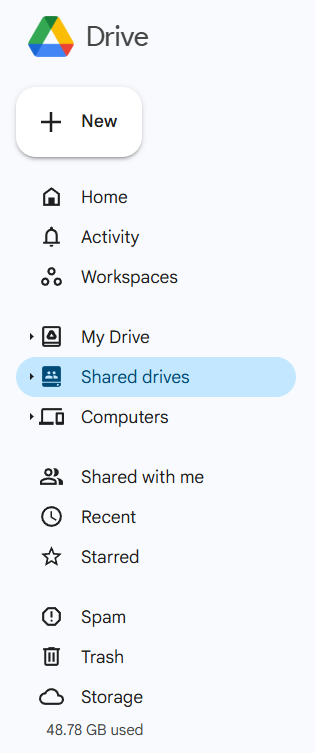
3. You will see a list of your shared drives either ones you have created or ones you have access to.
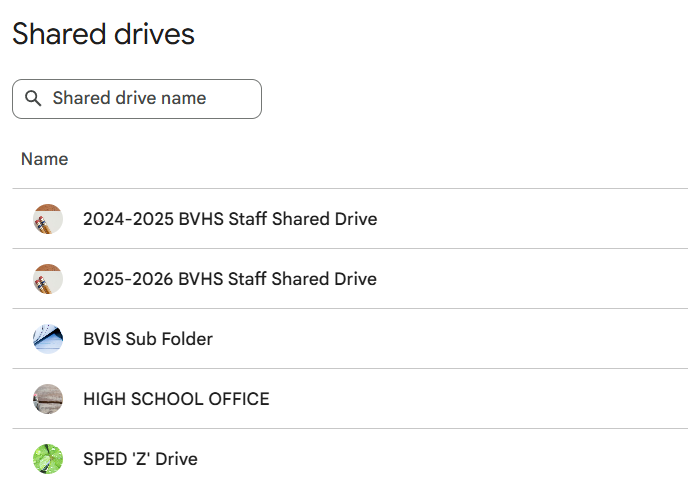
4. To create a new shared drive right click on the "Shared Drives" on the left and choose "New Shared Drive".
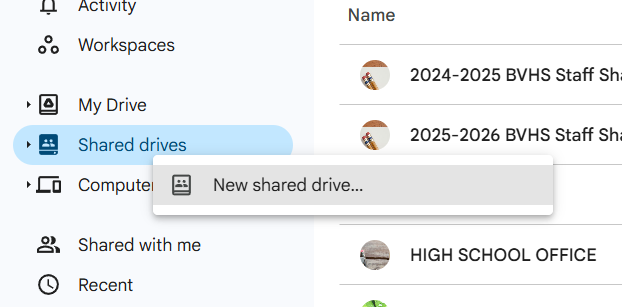
5. Once you create a new drive give it a descriptive name.
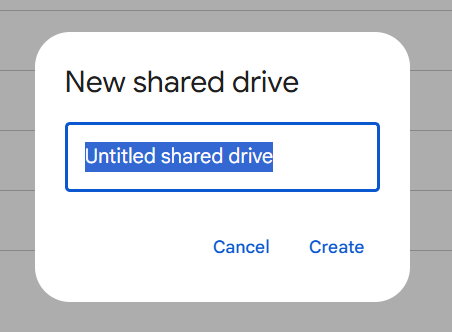
6. Once created you can click the three dots on the right and manage the settings of the shared folder.
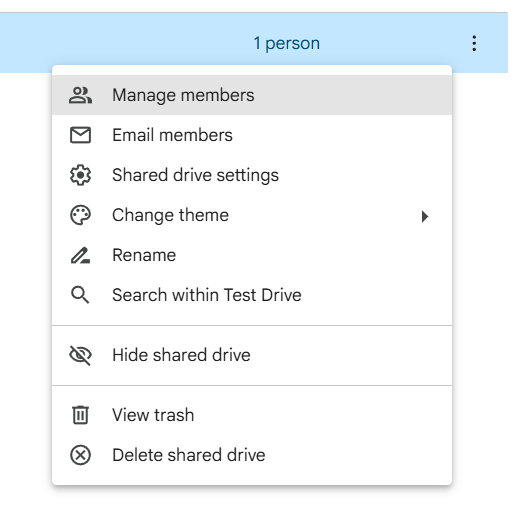
7. The most important setting is manage members. These are the people that will be allowed access.
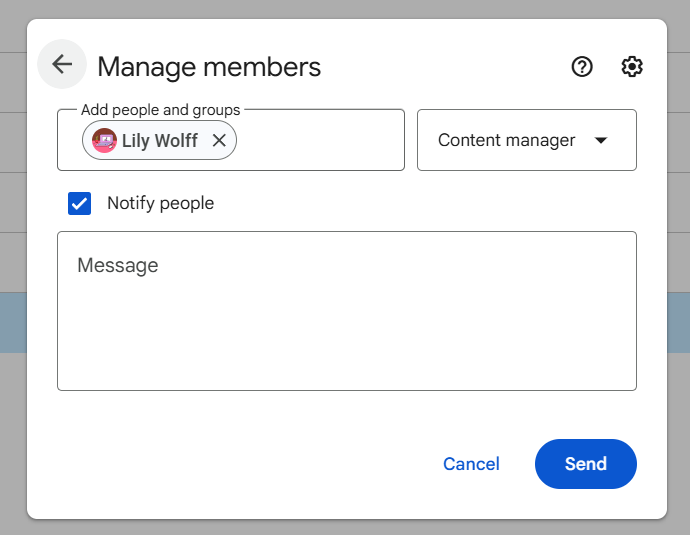
8. If you would like to further secure the drive so that only users who are given access can use the shared drive. Choose Shared Drive Settings or click the Cog icon while managing members.
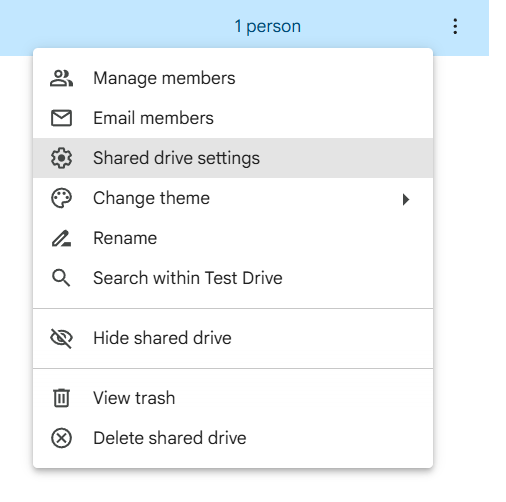
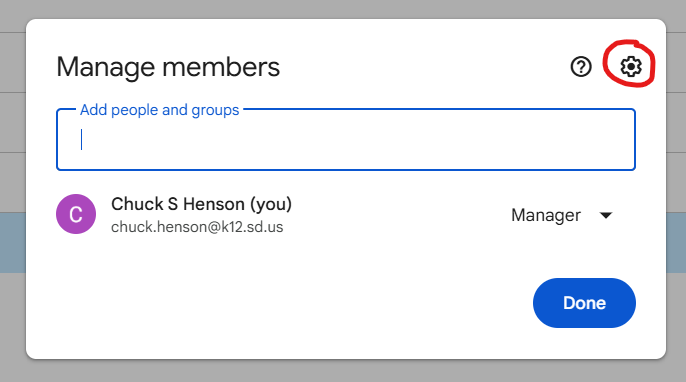
9. If you want to restrict the settings so that only the users you designate can acccess the shared drive you will want to uncheck the option that says Allow people who aren't shared drive members to access files.
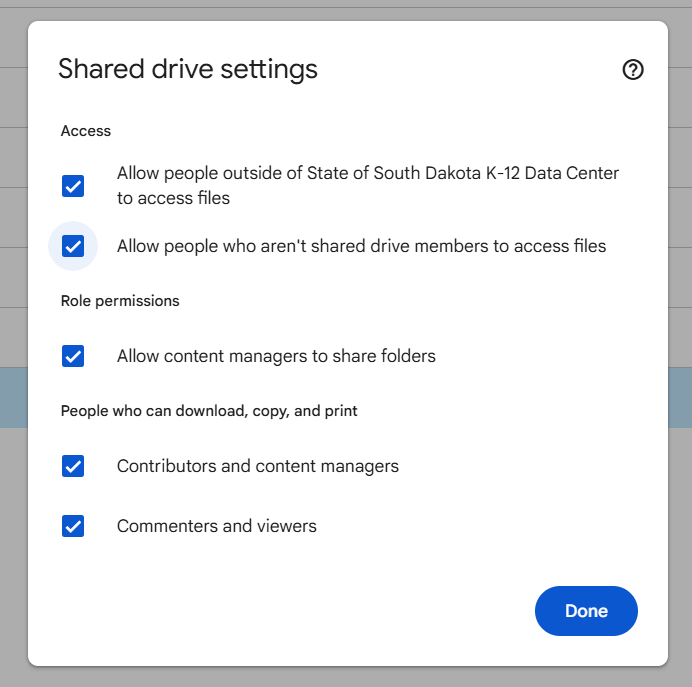
If you don't uncheck that box anyone with the link can access the files in the Shared Drive.
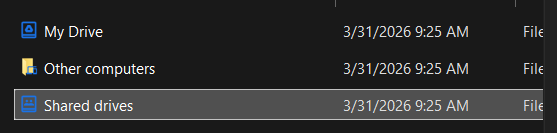
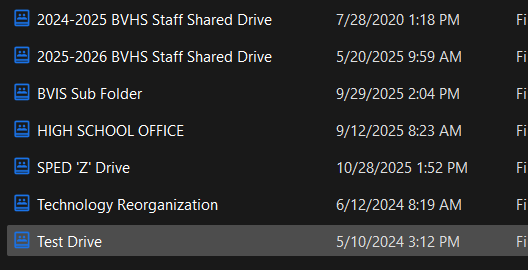
10. Once you have all the settings managed you can go back to your explorer window -> Google Drive (G:) and manage files more easily there.
If you have any questions or need assistance or 1 on 1 instruction. We are more than happy to help you. Please contact one of the IT Staff if you need assistance.